


AutoConstrain leverages AI to simplify the process of defining sketch geometry, making it easier and faster than ever before.
Introducing AutoConstrain
The foundation of every great 3D model is a set of strong sketches. Traditional methods of adding constraints and dimensions can be time-consuming.
By harnessing AI, AutoConstrain streamlines this process. It acts as a companion tool for your sketches, helping you define sketch geometry at any stage of your design. Use it to identify the final missing dimensions or constraints to fully define your sketch, to quickly add new details, or when starting a sketch from scratch.
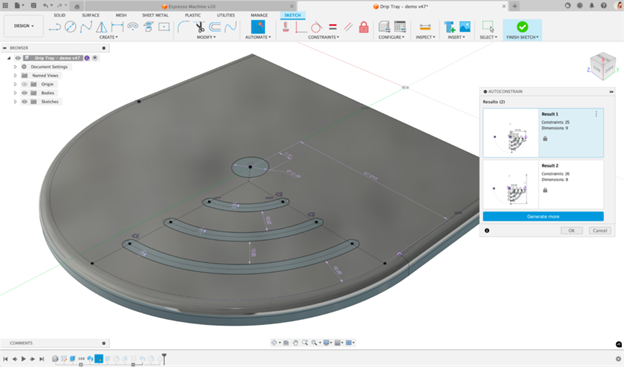
Getting Started with AutoConstrain in Fusion
You can find this new tool in the new Automate tab within the Sketch environment.
The AI capabilities of AutoConstrain will help you fully constrain your sketches, making it easier to create robust, fully-defined sketches.
Choose among the options generated by AutoConstrain, or click Generate More to see additional suggestions. Once you select a recommended result, your output will be a fully editable Fusion sketch.
AutoConstrain results are fully customizable. Using the Set Datum tool, you can set a reference point within your sketch. The new datum point will become the starting point for a modified dimensioning strategy. If you’d like to adjust the output, any constraints or dimensions displayed in the preview can be deleted, activating the Refresh button. The refreshed result will replace the deleted constraints and dimensions with new alternatives.
Source: Autodesk


